

Why preview on a real device
The web preview in Metabind Studio is fast but not faithful. SwiftUI and Jetpack Compose have rendering behaviors — typography, safe areas, gestures, accessibility — that the web renderer approximates but doesn’t reproduce exactly. Before you publish a tool that ends up rendering inside Claude on iOS, see it on iOS. A few specific things only a real device shows you:- Type metrics. Apple system fonts and Material typography render at slightly different weights and tracking than their web counterparts.
- Safe areas and dynamic insets. Notch, home indicator, and status bar interactions.
- Gesture feel. Hover states translate to press states; transitions land differently on touch hardware.
- Performance. A complex layout that stutters on a mid-tier Android device may feel fine on a desktop browser.
What the preview connects to
Live previews point at your project’s draft endpoint. Every save in Metabind Studio updates the draft instantly — the preview app re-fetches and re-renders. Production isn’t touched until you publish. This is the same draft endpoint Claude Desktop and other MCP hosts can connect to for testing. See Draft and production.iOS preview (App Clip)
The iOS preview ships as an App Clip — no App Store install required. The first time you scan, iOS prompts to load the clip; after that it stays cached.- In Metabind Studio, open a component.
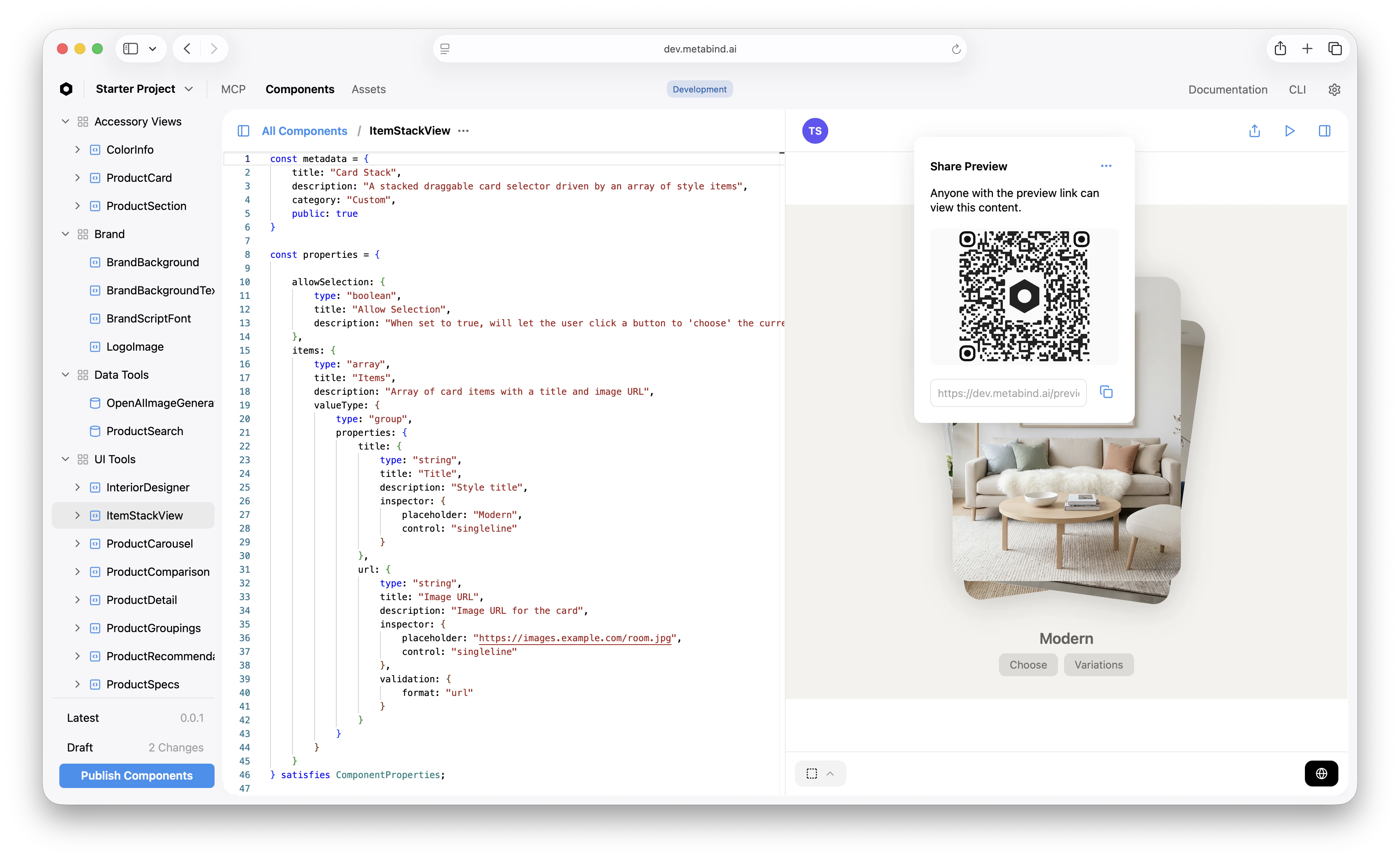
- Click the Share button to open Share Preview.
- Metabind Studio shows a QR code and a preview link.
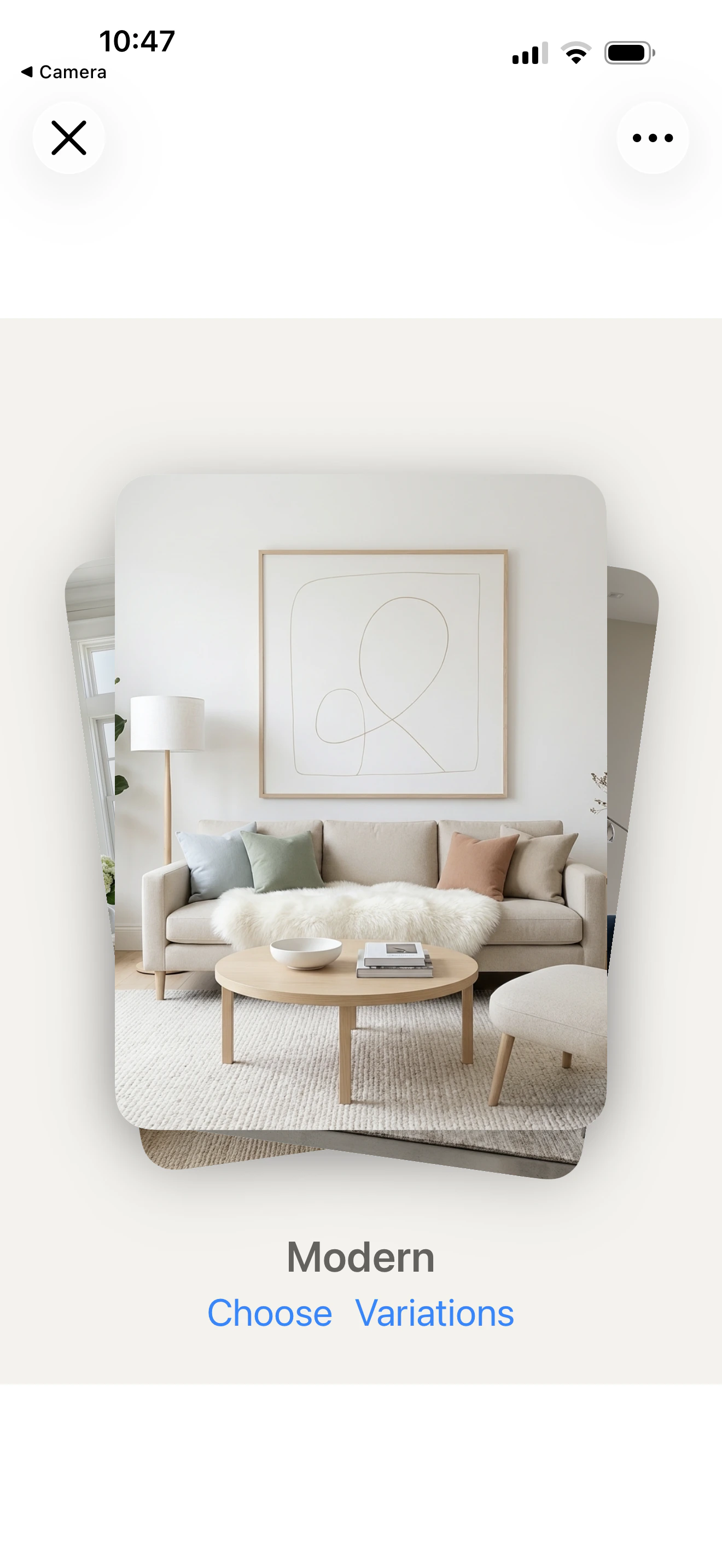
- Open the iOS Camera and scan the code.
- The App Clip launches and loads the shared component.
Android preview
The Android preview is a standalone app available on the Play Store as Metabind.- Install Metabind from the Play Store.
- In Metabind Studio, open a component and click Share.
- Scan the QR code with the Metabind app, or copy the preview link and open the app’s scan screen, which offers to paste it.
- The app opens the shared component.
Web preview
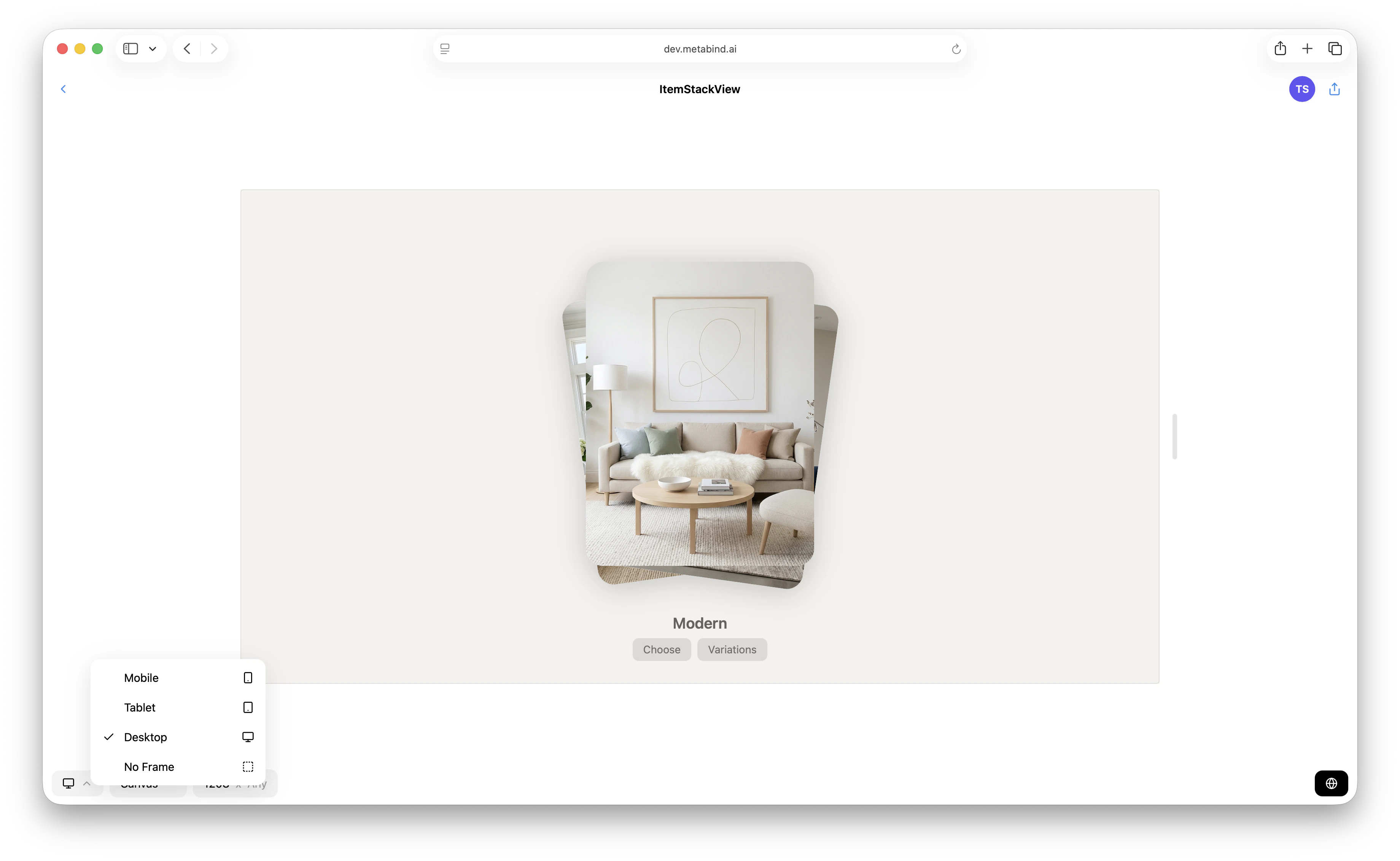
The web preview lives inside Metabind Studio itself — the right pane on any Type or component detail. It’s the fastest loop, since there’s no device to scan, but it uses@metabindai/bindjs-react (React) rather than the native mobile engines.
What you can preview
Components and Interactive Tools render on every supported surface. Data Tools don’t have a preview because they return JSON, not UI; use the test panel.
Iterating with previews
The preview re-fetches when you save. A few patterns that speed up iteration:- Pin a Type. When you have a single Type you’re refining, leave it open in the preview and edit the underlying component in Metabind Studio. Each save round-trips in under a second.
- Use multiple devices. Side-by-side iOS and Android previews catch platform-specific rendering issues — a font that looks fine on iOS may push a layout differently on Android.
- Test edge cases via previews entries. A component’s
previewsarray can include “empty,” “long-text,” and “error” variants. Cycle through them on-device to verify each state. - Show stakeholders. Preview links can be shared — designers and PMs can scan the QR code from their own phones and review without an Metabind Studio account.
Preview link sharing
The QR code encodes a preview link (/preview/<token>) for one component or content entry. Anyone who scans it can view that component or entry. The link is read-only — viewers can’t edit, only see.
If you need to share a preview without exposing it broadly, use Project visibility to make a sample project public, or invite specific reviewers to your organization with a Viewer role on a private project.
Preview vs. real MCP host
The preview apps render tools the same way the production runtime does, but they don’t simulate the AI calling your tool. The preview shows what an Interactive Tool would render given specific inputs — you supply those inputs. To test the full chain (AI decides which tool to call → tool runs → tool renders), connect a real MCP host like Claude Desktop to the draft endpoint. See Connect to Claude Desktop.Related
Testing tools in Metabind Studio
The inline test panel for tool inputs and outputs.
Draft and production
What the draft endpoint is and how publishing promotes it.
Authoring BindJS components
The authoring loop the previews are paired with.
Connect to Claude Desktop
Test the full AI-to-tool chain on a real host.